
Table of Contents
Free PDF to Word Converter: Edit Any PDF in Seconds
PDFs are great for sharing, but terrible when you need to edit something quickly. That’s where a free PDF to Word converter becomes essential, letting you turn locked PDFs into fully editable Word documents without paying for expensive software. On ilovepdfapp.com , you can convert your PDFs to Word in just a few clicks, directly in your browser.

What Is a Free PDF to Word Converter?
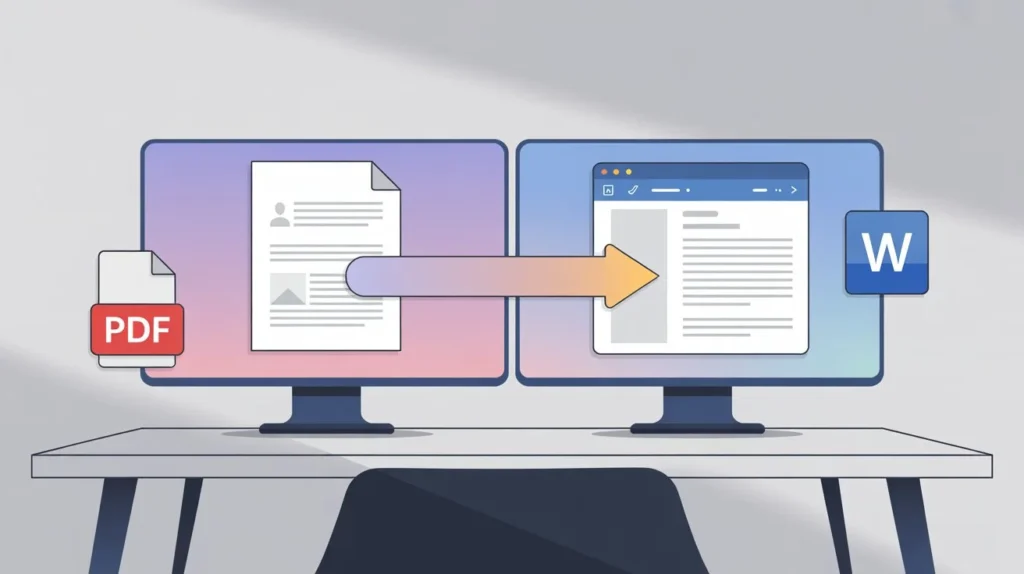
A free PDF to Word converter is an online or software tool that transforms a PDF file into an editable Word document (usually in DOC or DOCX format). Instead of retyping content manually, you upload your PDF, run the conversion, and download a Word file you can open in Microsoft Word, Google Docs, or another word processor.
Most modern online converters aim to preserve fonts, layout, images, and overall formatting so your new Word file looks almost identical to the original PDF. This saves time, reduces errors, and makes editing long or complex documents much easier.
Why You Need a Reliable Converter
Not all converters are equal. A poor-quality converter can break your layout, move images around, or turn tables into a mess of text. A reliable free PDF to Word converter helps you:
- Save hours of manual retyping and formatting.
- Preserve the professional look of reports, invoices, resumes, and contracts.
- Quickly update existing documents instead of recreating them from scratch.
- Reuse content from eBooks, whitepapers, and scanned documents for new projects.
For students, professionals, freelancers, and small businesses, a good converter becomes a daily productivity tool rather than a one-time utility.
Key Features to Look For in a Free PDF to Word Converter
When choosing the best solution for your needs, pay attention to more than just the word “free.” Here are the key features that really matter.
High-quality formatting preservation:
A strong converter keeps:
- Paragraphs, headings, and bullet points in the right order.
- Fonts, font sizes, and styles (bold, italics, underlines) as close to the original as possible.
- Tables, columns, and image placement aligned correctly.
If you regularly work with professional documents, preserving layout is crucial. It ensures your converted Word file looks polished instead of messy.
OCR support for scanned PDFs
Many PDFs are actually images (for example, scanned documents, photographed contracts, or printed forms). Without OCR (Optical Character Recognition), these can’t be edited as real text.
A converter with OCR can:
- Detect text inside images.
- Turn that text into editable, searchable content in Word.
- Make even old scans usable for editing, translation, or archiving.
If you handle scanned invoices, receipts, or printed contracts, OCR is a game-changer.
Speed and file size handling
A good free PDF to Word converter should be fast enough to handle common business documents without long waiting times. While very large files may naturally take longer, your typical reports, resumes, and brochures should convert in seconds.
Look for tools that:
- Handle multi-page PDFs smoothly.
- Do not crash or hang on slightly larger files.
- Provide clear progress indicators during conversion.
Security and privacy
You often convert PDFs that contain sensitive information—client details, financial data, or internal documents. That’s why security matters, even for a free tool.
A trustworthy converter should:
- Use secure connections (HTTPS) to upload and download files.
- Avoid storing your documents longer than necessary.
- Make its privacy and data-handling practices clear and transparent.
Always avoid shady sites that bombard you with pop-ups, ads, or unclear terms.
Ease of use and cross-platform access
A user-friendly converter doesn’t require technical knowledge. Many browser-based tools offer simple drag-and-drop upload, minimal steps, and instant downloads without installing software.
- Desktop (Windows, macOS, Linux)
- Mobile devices (Android, iOS)
- Any modern browser (Chrome, Edge, Safari, Firefox)
This way, you can convert a PDF to Word wherever you are.
How to Use ilovepdfapp.com’s Free PDF to Word Converter
On ilovepdfapp.com, the conversion process is designed to be intuitive and fast, even for non-technical users. Here’s a simple step-by-step guide:
1. Open the PDF to Word tool
Go to `PDF to Word Converter Tool` in your browser.
2. Upload your PDF file
- Click the upload button or drag and drop your PDF into the upload area.
- You can select any PDF you want to turn into an editable Word document.
3. Choose your options (if available)
Depending on your setup, you may be able to choose things like OCR for scanned PDFs or language preferences for better recognition.
4. Start the conversion
Hit the Precess button. The system will process your file and convert it to Word format in the background.
5. Download your Word document
Once the conversion is complete, click the download button to save your new DOC or DOCX file.
6. Edit and reuse your content
- Open the file in Word, Google Docs, or another editor. From here, you can change text, update images, adjust formatting, and save or export as needed.
- This flow makes it easy for visitors to your website to experience a smooth, hassle-free conversion and encourages them to explore your other PDF tools.
6. Edit and reuse your content
A free pdf to word converter is useful across many real-world scenarios:
- Students and teachers
Convert lecture notes, research articles, or assignment PDFs into editable Word documents for annotation, summarizing, or reformatting. - Professionals and freelancers
Edit client contracts, proposals, quotes, and reports without requesting the original source files. - Small businesses and entrepreneurs
Update brochures, price lists, forms, and HR documents easily when only older PDFs are available.
Content creators and marketers
Repurpose content from PDFs into blog posts, social media content, or email campaigns without rebuilding everything from scratch. When your website clearly explains these benefits, visitors are more likely to try the tool and return for repeat use.
Tips for Getting the Best Conversion Results
To ensure high-quality output when using any free PDF to Word converter, including the one on ilovepdfapp.com, follow these simple tips:
- Start with the highest-quality PDF you have (avoid blurry scans where possible).
- Use OCR for scanned documents to make the text fully editable.
- Check the converted Word file for minor formatting adjustments—especially tables and multi-column layouts.
- Save the edited Word file under a new name to keep track of your versions.
- If something looks off, try converting a smaller part of the document first, then the full file.
By educating users on these best practices in your blog post, you reduce frustration and improve satisfaction with your tool.
FAQs About Free PDF to Word Converter
A reputable converter is generally safe, as long as the site uses secure connections (HTTPS) and has a clear privacy policy. Avoid tools that look suspicious, show excessive ads, or ask for unnecessary personal information. For sensitive documents, always choose trusted platforms and read how they handle file storage and deletion.
Most modern converters do a good job preserving fonts, spacing, images, and layout, especially for standard documents. Complex designs with many columns, graphics, or custom fonts may need slight manual touch-ups after conversion, but you will still save a significant amount of time compared to recreating the document from scratch.
Yes—if the converter supports OCR (Optical Character Recognition). OCR analyzes the text inside images and turns it into selectable, editable text in Word. Without OCR, a scanned PDF will usually become a series of images in the Word file rather than editable paragraphs.
Many tools, including browser-based options like the one on ilovepdfapp.com, run entirely online. You simply open the page, upload your PDF, and download the converted Word document—no installation required. This is ideal for users who want quick conversions on any device.
Yes, the PDF to Word tool on ilovepdfapp.com is designed as a free pdf to word converter so anyone can upload a document and turn it into an editable Word file without paying. You can start converting immediately, then explore additional PDF tools on the site to compress, merge, or transform your documents further.
Social Sharing
Share your experience—let colleagues and friends know how easy it is to protect documents on ilovepdfapp.com!
Connect with us on Twitter, Facebook, and LinkedIn for more PDF tips and updates. Also try Word to PDF Converter