
Table of Contents
Add Password to PDF: Protect Your Documents With Strong Encryption
In a world where digital documents travel quickly from one device to another, keeping your files secure is more important than ever. Whether you’re handling personal records, business contracts, certificates, or financial reports, protecting sensitive information should always be a priority. One of the simplest and most effective ways to secure your files is to add password to PDF before sharing or storing them.
With online tools like iLovePDFApp, securing a PDF is quick, safe, and requires no technical skills.
Website: https://ilovepdfapp.com
Password Protection Tool: https://ilovepdfapp.com/add-password-to-pdf/
This guide explains why password protection matters, how to secure your PDF with strong encryption, and how to manage protected files safely.
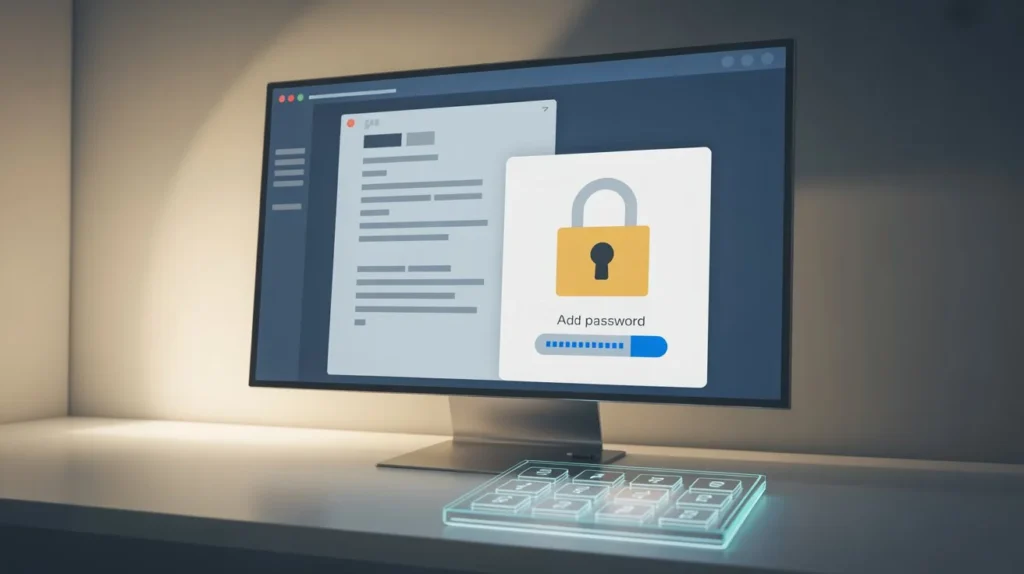
Why You Should Add Password to PDF Documents
PDF files are one of the most commonly used document formats because they work on any device, keep their layout, and are easy to share. But their accessibility also means they can fall into the wrong hands. Adding a password is a simple way to protect important content
1. Prevent Unauthorized Access
Only people with the correct password can open the file. This makes it ideal for sensitive documents like ID proofs, receipts, contracts, and invoices.
2. Enhance Privacy When Sharing Files
If you send a PDF through email or messaging apps, adding a password ensures privacy even if someone forwards the file.
3. Protect Confidential Business Information
Businesses share documents such as agreements, financial statements, and business proposals. Password protection keeps these documents secure during sharing and storage.
4. Ensure Professional Security Standards
Adding a password shows professionalism and responsibility. It communicates to clients and colleagues that you care about data safety.
5. Add an Extra Layer of Encryption
Modern password tools encrypt the entire file, making it unreadable without the correct key. This reduces the risk of data theft.
How to Add Password to PDF Using iLovePDFApp
The best part about using iLovePDFApp is that you don’t need to install any software. Everything works directly in your browser, and the process takes only a few steps.
Step 1: Visit the Platform
Go to https://ilovepdfapp.com
Step 2: Open the Password Protection Tool
Use the easy-to-access tool here: https://ilovepdfapp.com/add-password-to-pdf-file/
Step 3: Upload Your PDF File
Choose the file you want to protect. You can upload from your device, or drag and drop the file directly into the tool.
Step 4: Enter a Strong Password
A strong password should include uppercase letters, lowercase letters, numbers, and symbols. Avoid simple or predictable passwords.
Step 5: Encrypt and Download
Click the button to secure the file. Once the system applies encryption, download your protected PDF.
The entire process takes just a few seconds and works on both mobile and desktop devices.
What Makes a Password Strong and Secure?
A password is only useful if it’s hard to figure out. Here are some tips for creating strong password protection:
- Use at least 8–12 characters
- Combine letters, numbers, and special characters
- Avoid using personal details like birthdays or names
- Don’t use the same password for multiple files
- Store your passwords safely in a secure location
Using a strong password ensures your file remains protected even if someone tries to break into it.
Other Useful PDF Tools You Can Explore
While your main focus may be to add password to pdf, iLovePDFApp also provides several related PDF tools that improve document security and usability
1. Compress PDF
Make large files smaller without losing quality. This is helpful for sharing documents online.
Tool link: Click Here
2. Merge PDF
Combine multiple PDFs into one organized file. Useful for students, office workers, and professionals.
Tool Link : Click here
3. Resize or Change PDF Page Size
Adjust your document to standard page sizes like A4, Legal, or Letter. This is helpful when printing or uploading.
Tool link : Click Here
4. Convert PDF to Other Formats
PDFs can be converted to Word, Excel, PowerPoint, and other programs.
All tools are available online and free to use at:
ILovePDF App
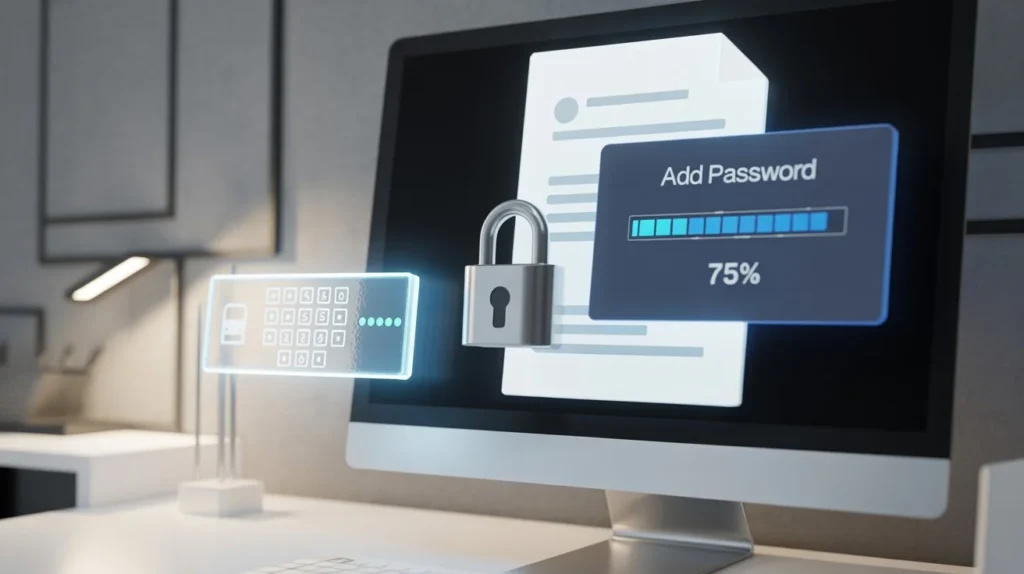
Benefits of Using an Online Tool to Add Password to PDF
1. No Installation Required
Everything works in your browser. This saves time and keeps your system clean.
2. Quick and Simple
You can secure a file in less than a minute. The site is built for fast workflow.
3. Works on Any Device
Mobile, tablet, or desktop—the tool is fully compatible across platforms.
4. Secure and Private
Files are processed safely and automatically deleted after a short time.
5. Free Access
You don’t need a subscription to use the password protection tool.
Who Should Add Password to PDF Files?
Almost anyone dealing with digital documents can benefit from password protection.
- Students:
Protect certificates, ID cards, and project files. - Freelancers:
Secure invoices, project documents, and contracts. - Businesses:
Protect reports, financial documents, client files, and proposals. - Legal Professionals:
Secure agreements, case documents, and confidential files. - General Users:
Protect personal documents such as ID copies and medical records.
If you share or store files online, password protection is essential.
Best Practices When Protecting PDF Documents
Follow these habits to keep your files safe:
- Use different passwords for different documents
- Don’t share passwords openly in group chats
- Send the file and password separately (example: file by email, password by SMS)
- Avoid simple words or short passwords
- Keep a backup copy of the original file
Good habits make document security more effective.
FAQs About Adding a Password to PDF
Q1. Can I remove the password later if I no longer need it?
Yes. As long as you know the current password, you can remove it using an online PDF unlock tool.
Q2. Is it safe to add password to PDF online?
Yes. iLovePDFApp processes files securely and deletes them automatically after a short time.
Q3. Will adding a password change the file format or quality?
No. The content remains exactly the same. Only encryption is added.
Q4. Can I protect multiple PDF files?
Indeed. The procedure can be repeated as often as necessary.
Q5. Can I open a protected PDF on mobile?
Yes. As long as you know the password, you can open it on any device.
Final Thoughts
Securing your digital documents is essential, especially when sharing or storing sensitive information. With the right tool, you can easily add password to pdf and protect your files using strong encryption. Whether you’re a student, business owner, freelancer, or professional, password protection keeps your data safe and private.
To protect your documents today, visit:
Website: https://ilovepdfapp.com
Password Tool: https://ilovepdfapp.com/add-password-to-pdf/