
Table of Contents
Convert PDF to CSV – Extract Clean Tables from Any PDF
Converting PDF tables into a clean CSV file is one of the fastest ways to move data into Excel, Google Sheets, or databases for analysis. When you convert PDF to CSV correctly, you turn static reports into searchable, filterable, and fully editable data.
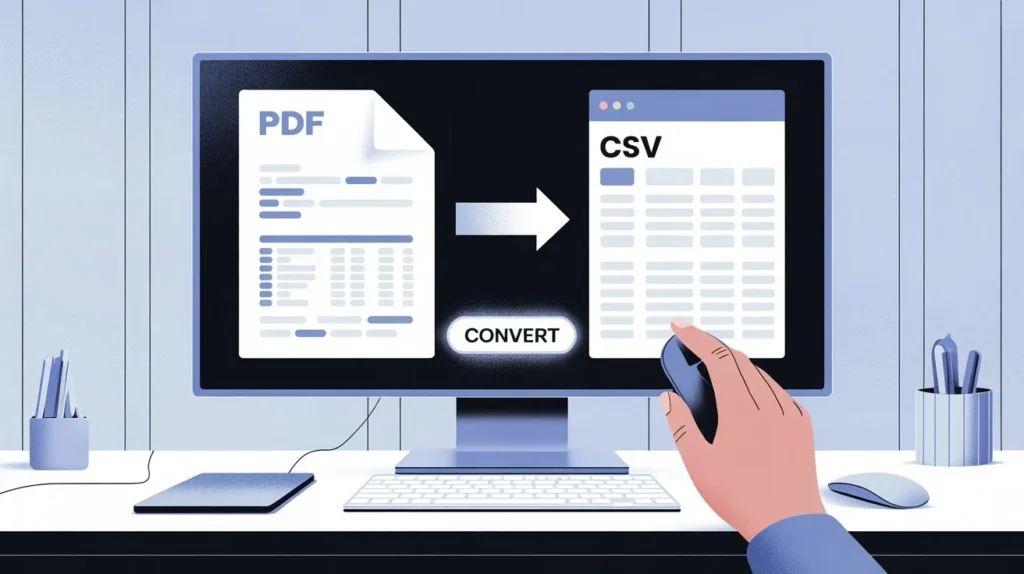
What Does “Convert PDF to CSV” Really Mean?
A CSV (Comma-Separated Values) file is a plain-text format where each row represents a record and each column is separated by a delimiter such as a comma or semicolon. This structure makes CSV ideal for spreadsheets, BI tools, and most database systems.
PDF, on the other hand, is designed for consistent visual layout, not for structured data extraction, which is why simply copying and pasting tables often breaks column alignment and creates messy data. Many modern PDF-to-CSV tools use table-detection engines or OCR (for scanned PDFs) to reconstruct rows and columns before exporting them as CSV.
Why Extracting Tables from PDFs Is Difficult
When you convert PDF to CSV, the main challenge is that a PDF usually “looks” like a table but does not always store that table as a structured grid under the hood. Some PDFs embed real text in positions on a page, while others contain only scanned images of printed tables.
This leads to common issues such as:
- – Columns merging together when spaces are misinterpreted as separators rather than column boundaries.
- – Multi-line cells (like long descriptions or addresses) breaking across rows.
- – Inconsistent table layouts between pages of the same report.
- – Scanned PDFs requiring OCR to “see” the text at all.
Because of these issues, the quality of your PDF source (native vs scanned, clean vs noisy) heavily influences how accurate your final CSV will be.
1. Use Direct Online PDF-to-CSV Converters
The most straightforward option is to use a dedicated online PDF to CSV converter. These tools typically follow the same pattern: you upload your PDF, choose CSV as the output format, and download the result.
Popular services such as Zamzar, Convertio, PDF Candy, and ComPDFKit offer browser-based PDF to CSV conversion where the tool automatically detects tables and exports them into a CSV file you can open in Excel or Google Sheets.
Some platforms, like Sejda or pdfFiller, also let you choose whether to export as Excel or CSV and may include basic table preview or page selection options before you convert.
Click Here
If your PDF includes both text and tables you want to edit, a good workflow is to first turn it into an editable document. Use the PDF to Word tool on ilovepdfapp.com to convert the PDF into DOC/DOCX, clean up the layout in Word, then copy the table into Excel and save it as CSV.
2. Convert PDF to Excel First, Then Save as CSV
Another common method is to convert PDF to Excel and then export the spreadsheet as CSV. Adobe Acrobat’s online tools and similar services let you upload a PDF, convert it into an Excel workbook, review the extracted table, and finally save that spreadsheet as CSV from within Excel or another spreadsheet program.
Online converters like iLovePDF (the .com service) and several other platforms specialize in turning PDF tables into XLS/XLSX spreadsheets, which you can immediately open and then save or export as CSV.
This two-step flow is especially useful when:
Your PDF contains complex tables where you need to adjust column breaks manually before final export.
You want to add formulas, filters, or validation before saving the data in CSV format.
Go To The Website
On ilovepdfapp.com, you already promote document conversion tools such as PDF to Word and other utilities that make PDFs editable. After converting to an editable format, simply paste your table into Excel or Google Sheets and save as CSV to complete the workflow.
3. Use OCR and AI-Based Tools for Scanned PDFs
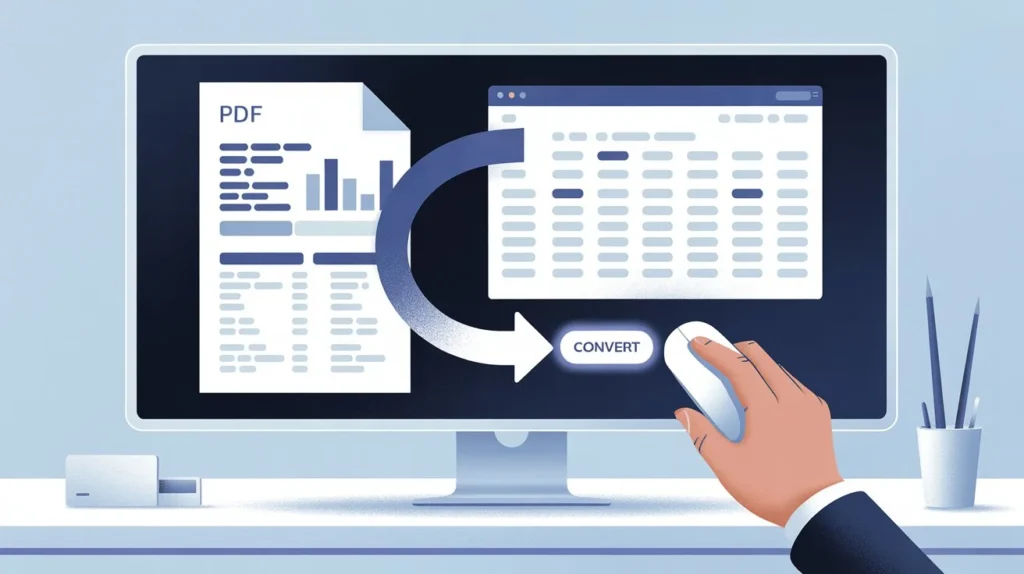
If your PDF is actually a scanned image (for example, a scanned bank statement or invoice), you must use OCR (Optical Character Recognition). Tools such as Nanonets, Docparser, or “PDF to Sheets” add-ons for Google Workspace combine OCR with intelligent table detection to recognize rows, columns, and field types from images and export them directly to CSV or Sheets.
These AI-based tools can handle recurring documents like invoices, purchase orders, and bank statements by letting you define parsing rules once and then automatically converting large batches of PDFs into CSV.
Go To The Website
For simpler documents where tables are mostly text, you can also start by extracting raw text using your PDF to Text/RTF converter on ilovepdfapp.com, then import that text into Excel using delimiters (tabs, spaces) and finally save it as CSV. This workflow is handy when full-blown OCR is not required.
Best Practices for Clean PDF-to-CSV Conversion
Even with good tools, the quality of your CSV depends on how carefully you set up and review the conversion. A few practical tips ensure your exported data is ready for analysis:
Check the delimiter and encoding: Make sure you export using the right delimiter (comma, semicolon, or tab) and a common encoding like UTF‑8 so special characters display correctly in Excel and databases.
Inspect the header row: Confirm that column names appear only once and that they match what you expect for downstream reporting or imports.
Validate numeric and date formats: After you convert PDF to CSV, verify that numbers, currency values, and dates are recognized as numeric fields rather than text, especially if the original PDF had localized formats.
Watch for merged or wrapped cells: Adjust column breaks in your converter (when available) or in Excel to fix rows where descriptions or long text caused misaligned cells.
Test with a small sample first: Before processing hundreds of PDFs, run a small batch, correct any mapping issues, and then apply the same approach to the full set.
Using a consistent workflow and the same converter for similar documents helps you avoid unpredictable layouts and keeps your CSVs clean and reliable.
FAQ – Convert PDF to CSV
Yes, but you need a tool that includes OCR, because a scanned PDF is basically an image with no selectable text. OCR-based services like Nanonets, Docparser, or Google Workspace add-ons can read the characters from the image, detect tables, and export them as CSV.
If your columns are misaligned, try a converter that lets you preview and adjust column boundaries before export, or convert to Excel first, fix the table structure, and then save as CSV. Also ensure your PDF source has clear gridlines or consistent spacing, because very irregular layouts are harder for algorithms to interpret correctly.
Most reputable converters explain their security practices, such as temporary uploads and automatic file deletion after a short period. For highly sensitive data (like financial or medical records), consider tools that process files locally in your browser or desktop software, such as some local-only PDF-to-CSV utilities.
Yes. Many online and AI-based tools can process all pages in a PDF and combine detected tables into one CSV, especially when each page uses the same layout. If the report mixes different table designs, you may need to convert sections separately and then merge CSV files manually or in a spreadsheet.
Strange symbols usually come from encoding mismatches or from PDFs that embed special fonts or glyphs. Choosing UTF‑8 encoding during export and using tools that handle Unicode text correctly typically solves this issue. If the original file was scanned and OCR misread certain characters, correcting them directly in Excel or re-running OCR with improved settings may be necessary.