
Table of Contents
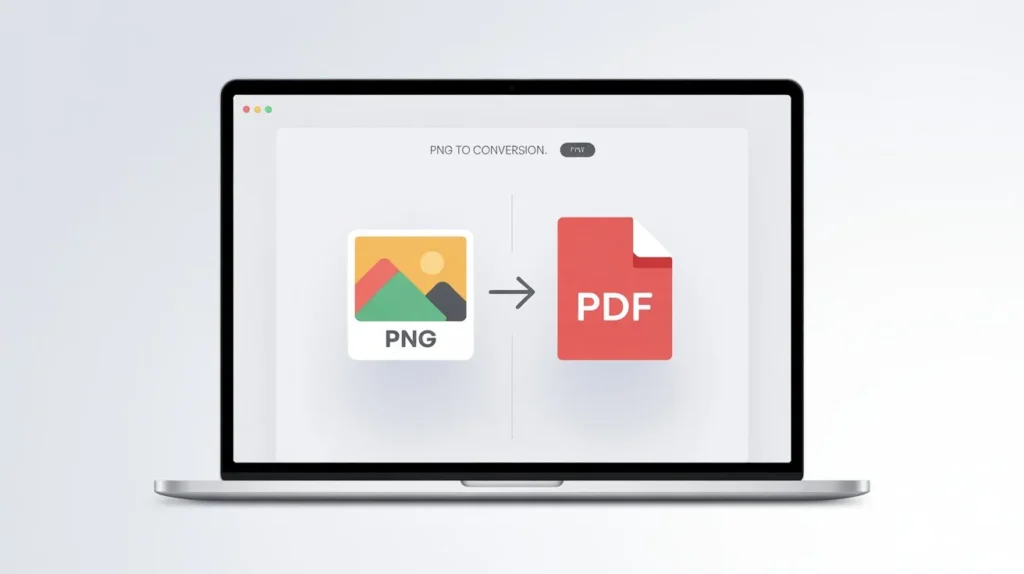
How to convert PNG to PDF online means changing an image file (PNG) into a PDF document using a website.
You upload your PNG, and the tool instantly creates a PDF version you can download.
No app needed, no technical steps.
Why people search for this
PNG files are great for images, but PDFs are easier to share, print, and upload on most platforms. That’s why many people look for how to convert png to pdf online, especially when they need to submit documents quickly.
Here are the most common reasons:
- You want to upload images as a single file (many websites accept PDF only).
- You need a clean file for printing (PDF prints better than random image sizes).
- You need to upload a PDF while filling out a form or applying for a job.
- You want to send documents on WhatsApp or email in a professional format.
How to convert PNG to PDF online (step-by-step)
If you’re a beginner, don’t worry. This is one of the easiest conversions.
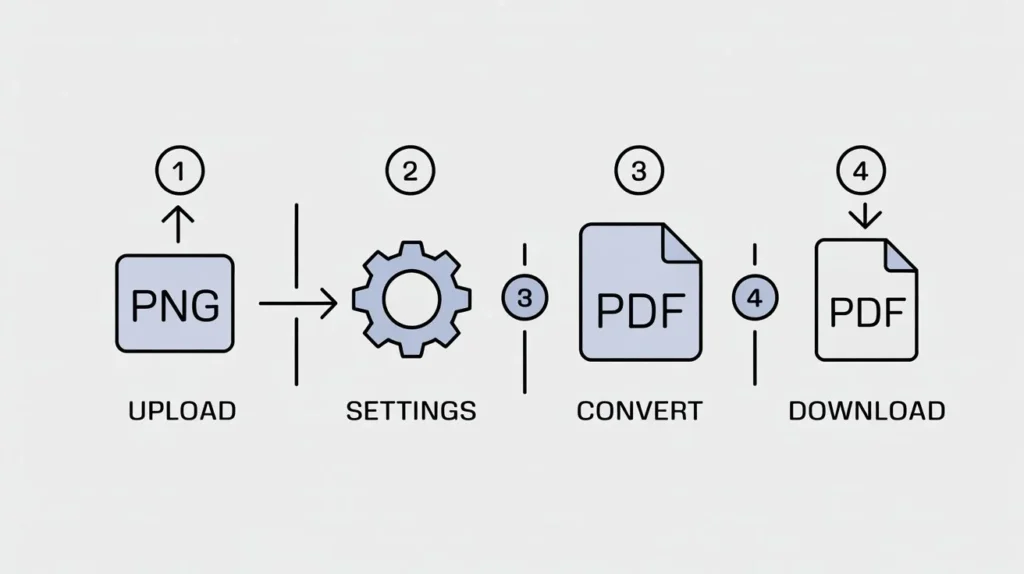
Step 1: Open a PNG to PDF converter website
Go to “PNG to pdf converter” and open it.
For all tools please visit ILovePDF app
Step 2: Upload your PNG image
Click “Select File” or “Choose PNG” and upload your photo.
Step 3: Choose settings (if available)
Some tools let you pick:
Page size (A4 is common)
Orientation (Portrait or Landscape)
Margins (Small margins look cleaner)
Step 4: Convert and download
To get your PDF file, click “Convert PNG to PDF.”.
That’s it. Your PNG is now a PDF.
How to convert PNG to PDF online free (without paying)
Just remember one thing:
If a tool adds watermarks, limits downloads, or forces sign-up, try another converter.
A good free tool like Ilovepdfapp.com should:
- Let you upload and convert instantly
- Give you a clean PDF without watermark
- Allow download without creating an account
Key qualities of a good PNG to PDF converter
Not every online tool gives the same output. Some reduce image quality or stretch your file. If you want a clean PDF, look for these features:
- No quality loss
A good converter keeps your image sharp, especially if it’s a screenshot or scanned document. - Fast conversion
It should take only a few seconds for normal images. - Safe and secure upload
If you’re converting personal documents (ID, certificates), always use a trusted tool and avoid shady popups. - Multiple PNG support
Sometimes you have more than one PNG. A good tool should let you combine images into one PDF. - Mobile-friendly
Many users convert files directly from phone. The tool should work smoothly on Android and iPhone.
Common use-cases (real-life examples)
Here are some situations where converting PNG to PDF really helps:
Students
You clicked photos of your notes or homework, but your teacher wants a PDF. Convert PNG to PDF and submit easily.
Job seekers
You have a screenshot of your resume or certificates saved as PNG. Convert it to PDF before uploading on job portals.
Office work
Your boss asks for a signed page scan in PDF format. You can convert your scanned PNG and send it as a professional PDF.
Shop owners and freelancers
You share invoices or payment screenshots often. PDF looks cleaner and is accepted everywhere.
Tips for best results (so your PDF looks perfect)
A few small things can make a big difference in the final PDF.
Use a clear image
If your PNG is blurry, the PDF will also be blurry. Always upload a clean and readable PNG.
Crop extra background
If your image has too much empty area, crop it before converting. Your PDF will look neat.
Use A4 page size for documents
If it’s a certificate, form, or notes, A4 size looks natural for printing.
Keep images in correct order
If you upload multiple PNG files, arrange them properly so the PDF pages come in the right sequence.
Check file size before sharing
If the PDF becomes too big, you can compress it using an online PDF compressor.
Mistakes people make (avoid these)
Even simple tools can give bad output if you do these common mistakes:
Uploading very low-resolution PNG:
This makes the PDF unreadable, especially for text documents.
Using random popup websites:
Some sites show fake download buttons. Always click the main “Convert” button only.
Forgetting to check page orientation:
A horizontal PNG may look weird on portrait PDF. Choose landscape if needed.
Not reviewing the final PDF:
Always open the PDF once before sharing, especially for official work.
Quick FAQ (people also ask)
Q.1 Can I convert PNG to PDF on mobile?
Yes, you can convert PNG to PDF online using mobile browser. No app needed.
Q.2 Will the PDF keep the same quality?
Most good tools keep quality the same, but some compress it. Use a trusted converter if quality matters.
Q.3 Can I create a single PDF from several PNG images?
Yes, many converters allow multiple uploads and merge them into a single PDF.
Q.4 Is it safe to upload personal documents?
For sensitive files, use a well-known tool and avoid unknown websites. If possible, delete files from the tool after conversion (some sites offer that option).
Conclusion
If you’re wondering how to convert png to pdf online, the easiest way is using a free online PNG to PDF converter. Upload your PNG, convert, and download your PDF in seconds. It’s simple, useful, and perfect for students, office work, and everyday sharing 🙂
Follow Us on Social Media
- Facebook: I Love PDFApp on Facebook
- Twitter: I Love PDFApp on Twitter
- Telegram: I Love PDFApp on Telegram
- Linkedin: I Love PDFApp on Linkedin
- Pinterest: I Love PDFApp on Pinterest