
Table of Contents
How to Redact a PDF: Automatically Detect and Redact Sensitive Information
PDFs are widely used for sharing sensitive information, but what happens when you need to remove confidential details before sharing? This is where redacting a PDF comes in. Redaction ensures that sensitive information is completely removed, protecting privacy and security. In this comprehensive guide, we’ll explain how to redact a PDF manually and automatically, as well as how to ensure your documents are secure and compliant with privacy regulations.
What is Redaction in a PDF?
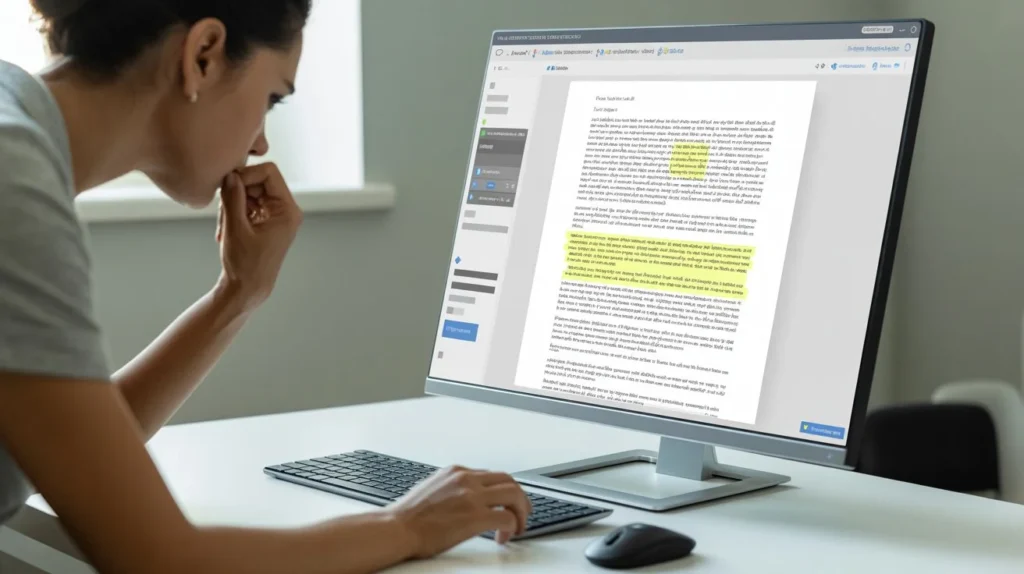
Redaction in a PDF refers to the process of permanently removing sensitive or confidential information from a document. This could include personal data, financial details, passwords, or anything that could compromise privacy. Once redacted, this information cannot be recovered or viewed, ensuring your document is safe to share.
Why Is Redacting Important?
Redacting information in a PDF is crucial for ensuring data privacy. Whether you’re dealing with legal documents, medical records, or financial reports, it’s essential to remove any private information that shouldn’t be shared with unauthorized individuals. Redacting PDFs also helps comply with privacy laws like GDPR or HIPAA.
How to Redact a PDF Manually
1. Using Adobe Acrobat Pro DC
Adobe Acrobat Pro is one of the most popular tools for editing and redacting PDF documents. Here’s how you can redact a PDF manually using Adobe Acrobat Pro:
- Open Your PDF: Launch Adobe Acrobat Pro and open the PDF you want to redact.
- Select the Redaction Tool: Go to the ‘Tools’ menu and choose ‘Redact’ under the ‘Protect & Standardize’ section.
- Mark the Content for Redaction: Select the text or images you want to redact. You can use the cursor to highlight sensitive content.
- Apply Redaction: Once you’ve selected all the content you wish to redact, click on “Apply Redactions.” Acrobat will permanently remove the information, and you can save the document.
2. Using PDF-XChange Editor
PDF-XChange Editor is another tool you can use to redact PDFs manually:
- Open the PDF: Launch PDF-XChange Editor and open the document.
- Choose Redaction Tools: In the ‘Comment’ tab, select the redaction tool.
- Select the Area to Redact: Click on the area of the document you want to redact.
- Apply Redactions: After selecting all sensitive areas, click ‘Apply Redactions’ to remove the content permanently.
How to Redact a PDF Automatically
In addition to manual redaction, some tools can automatically detect and redact sensitive information in a PDF. This method saves time, especially when dealing with large documents or when you’re unsure about where sensitive data may be located.
1. I Love PDFApp: Automatically Detect and Redact Sensitive Information
At I Love PDFApp, we offer an easy and automated way to redact sensitive information in PDF files. Our redaction tool automatically detects sensitive data such as names, addresses, and financial details, allowing you to redact them with a single click. Here’s how you can use it:
- Upload Your PDF: Visit I Love PDFApp and upload the PDF document you wish to redact.
- Choose the Redaction Tool: Select the automatic redaction feature from the menu.
- Scan for Sensitive Data: The tool will automatically scan your document and identify potential sensitive information.
- Review and Apply Redactions: After scanning, review the suggested redactions and confirm the removal. Once approved, the sensitive information will be permanently deleted.
- Download Your Redacted PDF: Finally, download the redacted PDF to your device.
This process saves you valuable time, ensuring that no sensitive information is left behind.
2. Using PDF Studio
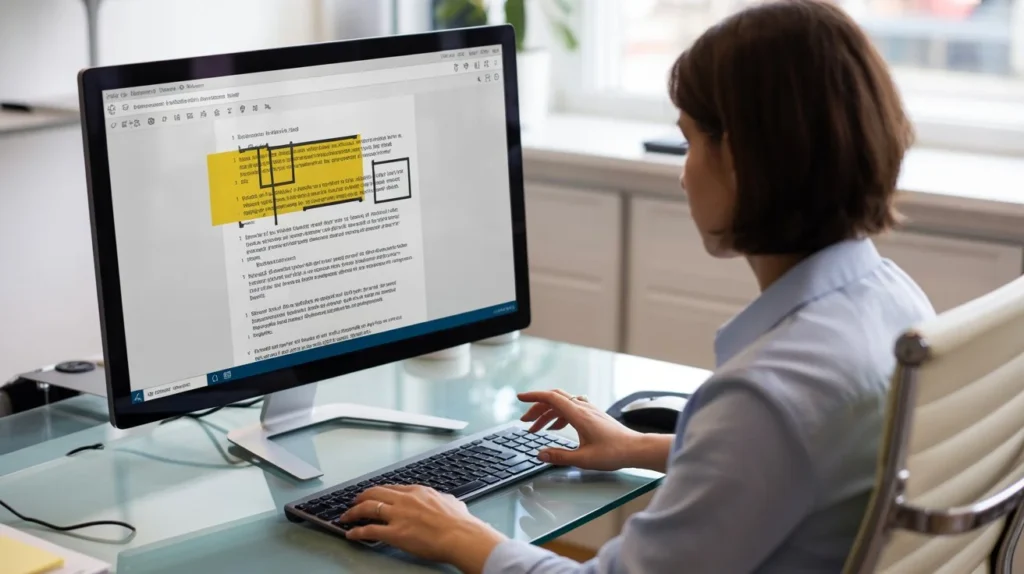
PDF Studio is a powerful PDF editor that can also automatically detect and redact sensitive data. The tool scans the document for potential privacy violations and redacts them automatically. Here’s how:
- Upload PDF to PDF Studio: Launch PDF Studio and load your document.
- Enable Auto-Redaction: Activate the auto-redaction feature in the security settings.
- Review and Apply: Review the automatically detected content and confirm the redactions.
- Save the Redacted Document: Once the redactions are applied, save the document.
3. Using Nitro Pro
Nitro Pro offers an automatic redaction tool that’s ideal for large documents or those with multiple pages. Here’s how to use it:
- Open the Document: Open your PDF with Nitro Pro.
- Activate the Auto-Redact Feature: Go to the ‘Security’ tab and select the auto-redaction tool.
- Automatic Detection: Nitro Pro will automatically detect sensitive information like names, addresses, and more.
- Review and Confirm: Review the detected data and apply the redaction before saving the document.
Key Considerations When Redacting PDFs
1. Double-Check Your Document
Before finalizing any redactions, it’s always a good idea to double-check the document to ensure that no sensitive information remains visible. Some tools may not catch everything, so a manual review is crucial.
2. Permanent Redaction
Make sure the redaction is permanent. Redacting only by highlighting or using the blackout tool without applying the redaction process may leave the original data behind and potentially recoverable.
3. Use Reliable Tools
Use reputable PDF redaction tools to ensure your document remains secure. Avoid free tools that might not fully redact data or leave it accessible.
Frequently Asked Questions How to Redact a PDF (FAQs)
Q1. What is the difference between redacting and deleting information in a PDF?
Redacting involves permanently removing content from a document, ensuring it is unrecoverable. Deleting only removes it temporarily and can sometimes be restored using PDF recovery tools.
Q2. Can I redact a PDF for free?
Yes, there are free tools available for redacting PDFs. However, free tools may have limitations and might not guarantee permanent redaction. Paid tools like Adobe Acrobat or I Love PDF provide more security.
Q3. Is redaction in a PDF legally binding?
Yes, redaction can be legally binding if done properly. It ensures that sensitive information is completely removed, which is critical in legal and business documents.
Q4. Can redacted information be recovered?
If done correctly, redacted information cannot be recovered. However, if the redaction tool is not used properly, the data may still be accessible.
Q5. Can I redact images in a PDF?
Yes, you can redact images in a PDF. Most PDF editors allow you to redact both text and images to ensure that no confidential data remains visible.
Q6. How to Redact a PDF File?
Its Easy You can using our PDF tool How to Redact a PDF for free.
Conclusion
Redacting a PDF is an essential task when dealing with sensitive information. Whether you’re handling legal documents, financial reports, or medical records, using the right tools to redact a PDF ensures privacy and security.
At I Love PDFApp, we offer an easy-to-use solution that allows you to automatically detect and redact sensitive information. This feature saves you time and effort while ensuring your documents are secure.
Follow Us on Social Media:
- Facebook: I Love PDFApp on Facebook
- Twitter: I Love PDFApp on Twitter
- Telegram: I Love PDFApp on Telegram
- Linkedin: I Love PDFApp on Linkedin
- Pinterest: I Love PDFApp on Pinterest