
Table of Contents
How to Remove Password from PDF
PDF files are great for sharing documents securely, but password protection can sometimes become a problem. Maybe you received a locked PDF and now need to edit it, print it, or upload it somewhere. Or maybe you set the password yourself and no longer need it. In such cases, knowing how to remove password from PDF can save time and frustration. This guide explains everything in simple terms and shows you an easy way to unlock PDFs online using ilovepdfapp.com.
What Is How to Remove Password from PDF?
Removing a password from a PDF means unlocking a file that is protected with a password so it can be opened, edited, printed, or shared freely. Once the password is removed, the PDF behaves like a normal file with no restrictions.
It is important to note that you can only remove password protection if you already know the correct password. Online tools do not bypass security. They simply help you remove the lock when you are authorized to do so.
In short, how to remove password protection from PDF refers to a safe and legal way to unlock your own files or files shared with permission.
Why You Might Need How to Remove Password from PDF
There are many everyday situations where removing a PDF password makes sense. Some common reasons include:
- You want to edit the content but the PDF is locked
- You need to print the file without entering the password every time
- The PDF is required for online submission and passwords are not allowed
- You are sharing the file with others and want easy access
- The additional layer of security is no longer necessary.
For beginners especially, repeatedly entering a password can feel inconvenient. Learning how to remove a password for a PDF file makes document handling much simpler.
How to Remove Password from PDF Using ilovepdfapp.com
If you are looking for a quick and beginner-friendly method, ilovepdfapp.com offers a simple online solution.Neither software installation nor registration are required.
Here is a step-by-step guide:
Step 1: Open the Tool
Go to the official PDF unlock tool at: Remove Password
For all tools, please visit the ILovePDF app.
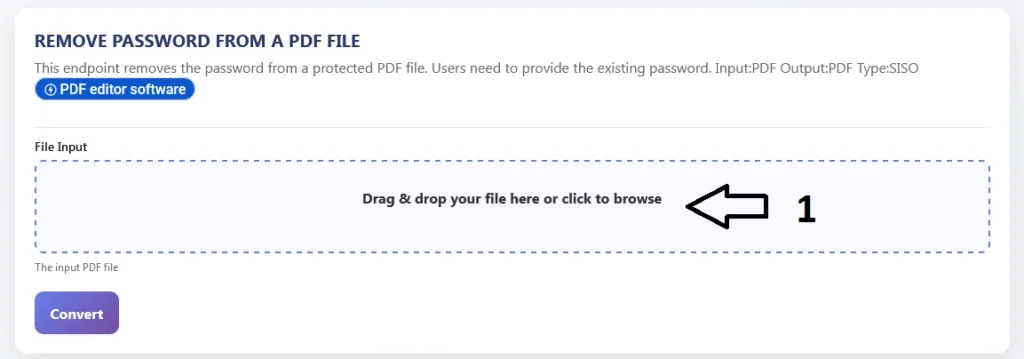
Step 2: Upload Your PDF
Click on the upload button and select the password-protected PDF from your device. The tool supports standard PDF formats.
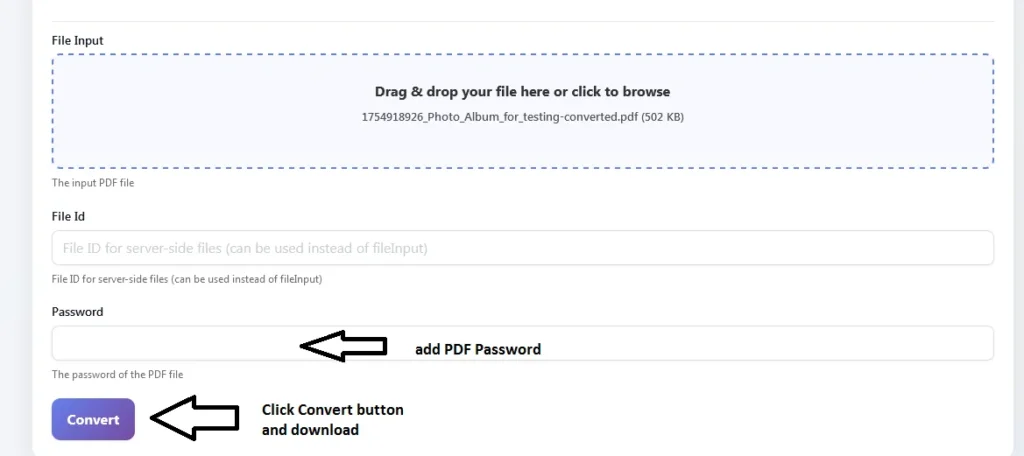
Step 3: Enter the Password
Enter the right password for the PDF when prompted. This confirms that you are authorized to unlock the file.
Step 4: Remove the Password
Click on the remove password option. The tool will process your file securely.
Step 5: Download the Unlocked PDF
Once complete, download the unlocked PDF to your device. The new file will open without asking for a password.
This process explains how to remove password protect from PDF in just a few clicks, even if you are using an online tool for the first time.
Key Features of ilovepdfapp.com for This Task
ilovepdfapp.com is designed for users who want simple and reliable PDF solutions. Some useful features include:
- Clean and easy-to-use interface
- No registration required
- Fast processing for most files
- Works on desktop and mobile browsers
- Secure handling of uploaded documents
For users searching for PDF password Remove tools that are straightforward and practical, these features make the experience smooth and stress-free.
Benefits of Using an Online Tool
Online PDF tools have become popular for good reasons. Here are some clear benefits:
- No software installation needed
- Saves device storage
- Works on any operating system
- Easy for beginners
- Accessible anytime, anywhere
Instead of downloading heavy desktop programs, an online tool helps you remove PDF passwords in minutes. This is especially helpful when you need a quick solution.
Also Try Add Password to PDF
Just as removing passwords is useful, sometimes you need to secure a PDF again. Adding a password helps protect sensitive information such as contracts, personal records, or business documents.
With an add password tool, you can:
- Lock a PDF with a strong password
- Prevent unauthorized access
- Control who can open or edit the file
Using password protection when needed and removing it when no longer required gives you full control over your documents.
Common Questions or FAQs
Q1. Can I remove a PDF password without knowing it?
No. You must know the correct password. Online tools do not crack or bypass security.
Q2. Is it safe to upload PDFs online?
Yes, as long as you use a trusted website. ilovepdfapp.com processes files securely and is designed for user privacy.
Q3. Will removing the password change my PDF content?
No. The content stays exactly the same. Only the password protection is removed.
Q4. Does this work on mobile devices?
Yes. You can remove PDF passwords using your mobile browser without installing apps.
Q5. Is the tool free to use?
The basic password removal feature is available online without complex steps, making it suitable for general users.
Final Thoughts
Understanding how to remove password from PDF is a useful skill for anyone who works with documents. Whether you want to edit, print, or share a file more easily, removing password protection can make your workflow smoother.
ilovepdfapp.com offers a simple and user-friendly way to unlock PDFs without technical knowledge. If you have a password-protected PDF and want a quick solution, try the online tool today and manage your PDF files with confidence.
Follow Us on Social Media
Share your experience—let colleagues and friends know how easy it is to protect documents on ilovepdfapp.com!
Connect with us on.
- Facebook: I Love PDFApp on Facebook
- Twitter: I Love PDFApp on Twitter
- Telegram: I Love PDFApp on Telegram
- Linkedin: I Love PDFApp on Linkedin
- Pinterest: I Love PDFApp on Pinterest