
Table of Contents
Invert Colors in PDF: Improve Readability and Reduce Eye Strain
Reading PDF documents for long hours can be tiring, especially when they use bright backgrounds or low-contrast color schemes. This is where the invert colors feature becomes extremely useful. By inverting or replacing colors in a PDF, you can make documents easier to read, more accessible, and comfortable for your eyes.
In this guide, we will explain what invert colors means, why it matters, and how you can invert colors in PDF files for better readability using online tools like ilovepdfapp.com.
What Does “Invert Colors” Mean in a PDF?
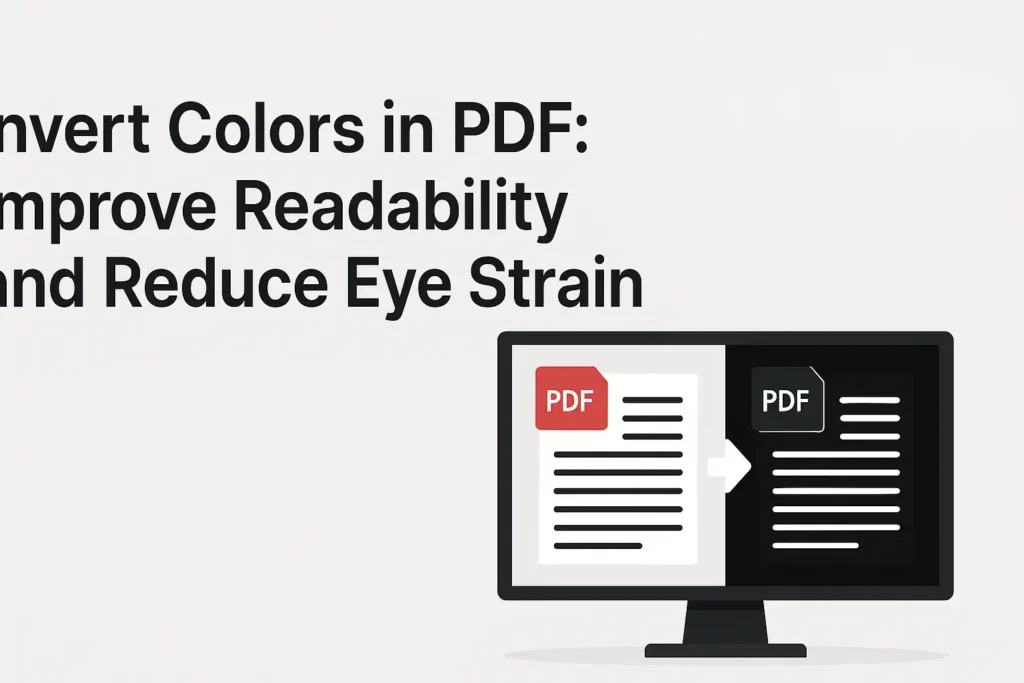
Invert colors means swapping the original colors of a document with their opposite values. For example, white backgrounds become dark, black text becomes light, and bright colors are toned down.
In PDFs, this technique is commonly used to:
- Convert light backgrounds into dark mode
- Improve text contrast
- Make documents readable in low-light environments
- Help users with visual sensitivity or dyslexia
Instead of editing each page manually, an invert colors tool applies these changes automatically across the entire document.
Why Invert Colors in PDF Files?
Why Invert Colors in PDF Files?
Many PDFs are designed for printing, not screen reading. Inverting colors can instantly make text stand out and reduce glare, especially on mobile and laptop screens.
Reduced Eye Strain
Dark backgrounds with light text are often easier on the eyes during nighttime reading. Using invert colors helps minimize eye fatigue during long study or work sessions.
Accessibility Support
Users with visual impairments, light sensitivity, or reading difficulties often find inverted color PDFs more comfortable and easier to process.
Consistent Viewing Experience
Scanned PDFs and image-based documents often have uneven lighting. Inverting colors helps normalize contrast across pages.
Common Use Cases for Invert Colors
The invert colors feature is widely used by:
- Students reading eBooks or lecture notes
- Professionals reviewing long reports
- Designers checking contrast levels
- Researchers working with scanned documents
- Anyone who prefers dark mode reading
If you regularly work with PDFs, this simple change can significantly improve your reading experience.
How to Invert Colors in PDF Online
Using an online tool is the easiest way to invert colors without installing software. With ilovepdfapp.com, the process is fast and beginner-friendly.
Step-by-Step Process
- Open your browser and visit ilovepdfapp.com
- Choose the PDF color editing or invert colors tool
- Upload your PDF file
- Apply the invert colors option
- Download the updated PDF instantly
No technical skills are required, and the entire process takes just a few seconds.
Benefits of Using an Online PDF Color Inverter
No Installation Needed
Online tools work directly in your browser, saving storage space and setup time.
Works on All Devices
Whether you are using a desktop, laptop, tablet, or mobile phone, you can invert colors easily.
Fast and Secure
Your files are processed quickly, and reputable platforms ensure file privacy and automatic deletion.
Free and User-Friendly
Most basic features are available for free, making them accessible to everyone.
Invert Colors vs Replace Colors in PDF
While invert colors flips all colors automatically, replace colors allows more control. You can change specific colors, such as:
- White background to light gray
- Yellow highlights to blue
- Black text to dark green
Both options are useful, depending on your reading needs. Invert colors is best for instant dark-mode style viewing, while replace colors is ideal for customized readability.
SEO and Productivity Benefits of Invert Colors
From a productivity standpoint, better readability leads to:
- Faster reading
- Improved focus
- Less visual fatigue
For businesses and educators, providing PDFs with inverted color options improves user satisfaction and accessibility, which can indirectly boost engagement and trust.
Frequently Asked Questions (FAQ)
Q 1. Is inverting colors in a PDF permanent?
Yes, once you download the inverted PDF, the changes are saved. However, you can always re-upload the original file to revert or adjust colors again.
Q 2. Does invert colors affect text quality?
No, when done correctly, the text remains sharp and readable. The tool only changes colors, not content or layout.
Q 3. Can I invert colors in scanned PDFs?
Yes, invert colors works well with scanned and image-based PDFs, often improving visibility significantly.
Q 4. Is it safe to upload PDFs online?
Trusted platforms like ilovepdfapp.com use secure processing and delete files automatically after conversion to protect your privacy.
Q 5. Can I use invert colors on mobile devices?
Absolutely. Online PDF tools are mobile-friendly and work smoothly on Android and iOS browsers.
Final Thoughts
The invert colors feature is a simple yet powerful way to enhance PDF readability. Whether you want a dark-mode experience, reduced eye strain, or improved accessibility, inverting colors can make a noticeable difference.
With easy-to-use online tools like ilovepdfapp.com, you can invert or replace colors in PDF files in seconds without installing any software. If you frequently read or work with PDFs, this feature is worth adding to your workflow.
Follow Us on Social Media
- Facebook: I Love PDFApp on Facebook
- Twitter: I Love PDFApp on Twitter
- Telegram: I Love PDFApp on Telegram
- Linkedin: I Love PDFApp on Linkedin
- Pinterest: I Love PDFApp on Pinterest