
Table of Contents
PDF to Markdown: Convert PDF Files into Editable Markdown Format
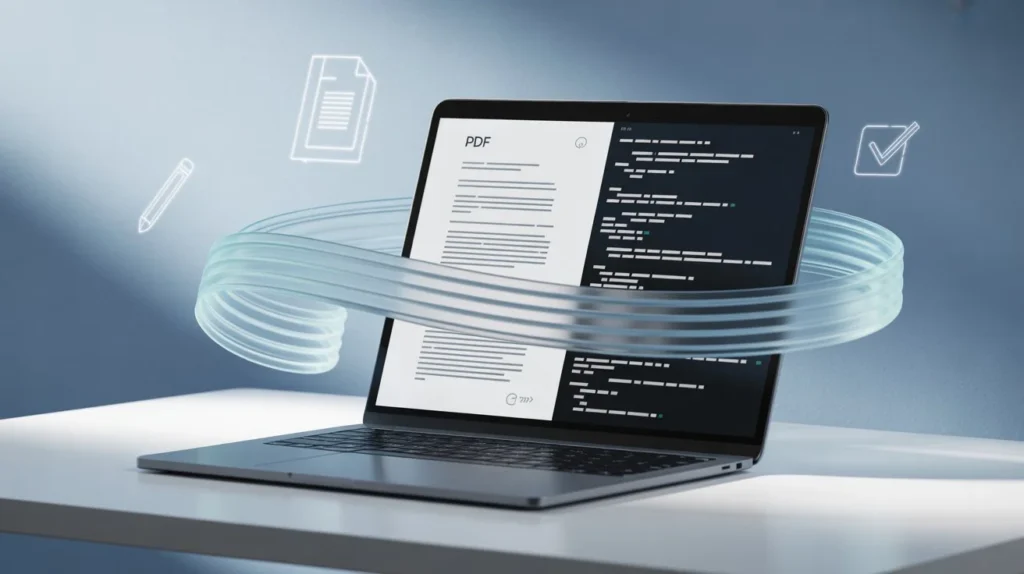
In today’s digital world, documentation and content creation rely heavily on flexible, easy-to-edit formats. While PDFs are the standard for sharing professional and secure documents, they often lack the flexibility needed for editing or collaboration. This is where converting PDF to Markdown becomes incredibly useful. By transforming a static PDF into Markdown, you gain the ability to edit, format, and repurpose content quickly across web applications, documentation tools, and content management systems.
This guide explains what Markdown is, why you might want to convert from PDF, and how to perform the conversion efficiently using online tools or automated scripts.
Understanding Markdown
Markdown is a lightweight markup language designed to make writing for the web simple and intuitive. It uses plain text symbols to format content—such as headings, lists, code blocks, and links—without needing complex HTML tags. Popular platforms like GitHub, WordPress, and Notion natively support Markdown, making it a preferred choice for developers, bloggers, and content creators.
For example:
- # represents a heading
- *text* or _text_ makes text italic
- **text** makes text bold
- – creates bullet points
Because Markdown is just text, it is extremely portable, version-control friendly, and easy to convert into other formats like HTML, PDF, or DOCX.
Why Convert PDF to Markdown?
PDF is excellent for sharing final, unmodifiable documents, but it can be restrictive for editing or content extraction. Converting to Markdown solves several issues:
- Ease of editing: Markdown files open in any text editor or IDE and can be modified without specialized software.
- Better content reuse: You can insert Markdown content directly into websites, blogs, or documentation tools.
- Lightweight file size: Markdown files are significantly smaller than PDFs, making them ideal for web publishing.
- Collaboration and version control: Markdown integrates smoothly with GitHub and other version control systems, enabling efficient collaboration on content updates.
- Automation and integration: Markdown’s simplicity allows it to be integrated into content workflows using scripts or APIs.
For example, technical writers often convert PDFs of product documentation into Markdown so they can host readable, easily updated pages on GitHub or documentation platforms.
Methods to Convert PDF to Markdown
There are several ways to convert PDF documents into Markdown format, depending on your workflow and technical comfort level. Let’s explore the most common approaches.
Using Online PDF to Markdown Converters
Online tools provide the quickest and most user-friendly way to convert PDF files. Many platforms, like ilovepdfapp.com, offer direct PDF conversion services. You simply upload your PDF and export it as Markdown.
Benefits of online tools:
- No installation required
- Works on any device
- Handles text, images, and layouts automatically
However, results may vary based on the tool’s extraction accuracy. Some PDFs have complex tables or images that may require manual cleanup after conversion.
Using Command-Line Tools and Packages
For developers or advanced users, command-line solutions offer more control and automation. Tools like Pandoc are widely used for professional document conversions. With a single command, you can turn a PDF into Markdown:
text
pandoc input.pdf -o output.md
Pandoc attempts to preserve the structure and formatting while translating it into clean Markdown syntax. This method is ideal for bulk conversions or integrating the process into a CI/CD pipeline.
Using Python Scripts and Libraries
Python libraries like pdfminer, pymupdf, and pdfplumber can extract text from PDFs programmatically. You can then format the extracted text into Markdown.
Here’s a simplified workflow:
- Extract text and layout from the PDF.
- Identify headings and lists from the formatting tags.
- Convert the structured text into Markdown syntax.
This approach provides flexibility for custom formatting, automation, or integration into your application.
Best Practices for Accurate Conversion
While converting PDF to Markdown is straightforward, maintaining quality requires some attention to detail. Here are key tips to ensure smooth conversion results:
- Clean your PDF before conversion – Remove unnecessary graphics and annotations to get cleaner text output.
- Check the text extraction accuracy – PDFs with scanned images require OCR (Optical Character Recognition) before conversion.
- Preserve headings and formatting – Ensure that titles, subheadings, and lists translate correctly to Markdown syntax.
- Review and reformat after conversion – Even with advanced tools, some manual correction might be needed, especially for tables or special symbols.
- Keep your file structure organized – Store converted Markdown files with clear names and include relevant metadata for future edits.
Following these practices helps maintain consistency and readability when publishing converted content online.
Use Cases for PDF to Markdown Conversion
PDF-to-Markdown conversion finds applications across different fields. Some notable use cases include:
- Technical documentation: Developers and product teams often convert PDFs to Markdown to host readable API or user documentation on GitHub.
- Content migration: When moving website content or reports to a CMS or a static site generator like Jekyll or Hugo.
- Education and research: Researchers can extract text from published papers in PDF format and convert them into Markdown for note-taking or citation management.
- Blogging and writing: Writers can repurpose old PDF articles into web-friendly Markdown blog posts.
- Software development: Markdown-based documentation enhances collaboration and version control integration.
Choosing the Right PDF to Markdown Converter
When selecting a converter, consider these key factors:
- Accuracy: Does it retain text formatting, headings, and bullet points?
- OCR support: Is it capable of recognizing text from images?
- File handling: Can it process large PDFs efficiently?
- Data privacy: Ensure the tool uses encrypted connections for uploads.
Tools such as ilovepdfapp.com provide secure, quick, and effective PDF-to-Markdown conversion suited for business and personal use.
Frequently Asked Questions (FAQs)
Several online converters can do this, but tools like ilovepdfapp.com offer fast and accurate conversion while preserving formatting. For developers, Pandoc is a highly recommended choice for automation.
Yes, but you need to use a converter that supports OCR (Optical Character Recognition) to extract text from images before generating Markdown output.
Basic formatting like headings, lists, and bold text transfers well, but complex tables or embedded graphics may require manual adjustment after conversion.
Always use websites that ensure file encryption and privacy protection. Some tools delete files automatically after processing to maintain security.
Absolutely. Markdown files can easily be turned into PDFs using tools like Pandoc or any Markdown editor that supports export features. This bi-directional compatibility makes Markdown extremely versatile.
Conclusion
Converting PDF to Markdown is one of the most efficient ways to make your documents editable, reusable, and SEO-ready. Whether you are a developer maintaining documentation or a writer republishing articles, Markdown gives you freedom and flexibility. With online tools and command-line utilities, converting your PDFs takes only a few seconds and opens limitless opportunities for content repurposing and optimization.
Social Sharing
Share your experience—let colleagues and friends know how easy it is to protect documents on ilovepdfapp.com!
Connect with us on Twitter, Facebook, and LinkedIn for more PDF tips and updates.
Also have Markdown to PDF Converter. please try it