
Table of Contents
PDF to Text/RTF: Effortlessly Convert Your PDF Documents
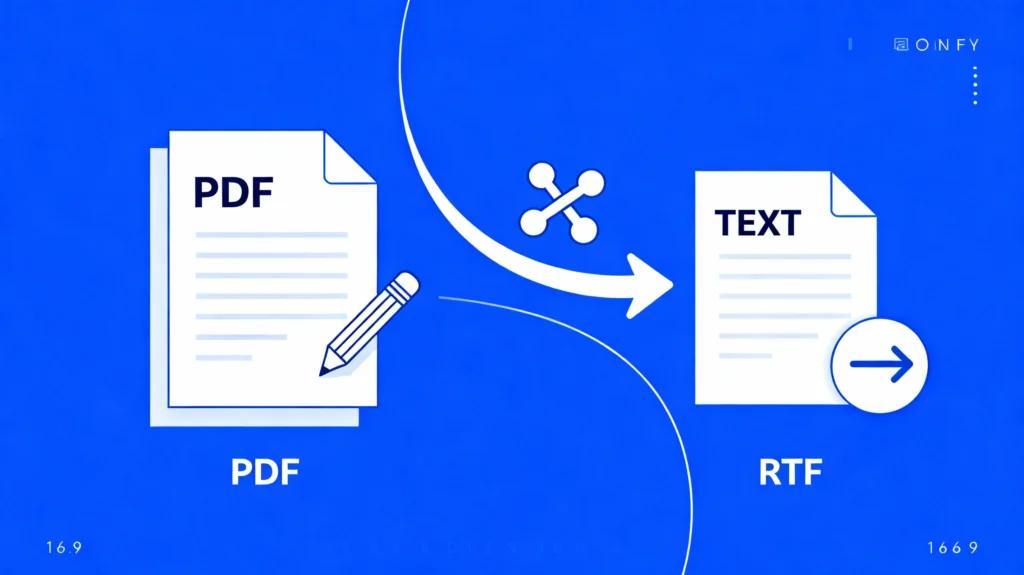
In today’s digital world, the PDF format is widely used for securely sharing documents. However, sometimes you need the content from a PDF in an editable or plain-text format. Converting your PDFs to Text or Rich Text Format (RTF) unlocks new ways to edit, share, and reuse your information easily. This blog post breaks down why and how you should use PDF to Text/RTF conversion, along with practical tips and frequently asked questions.
Why Convert PDF to Text/RTF?
PDF files are known for their consistency—what you see is what you get, regardless of device or platform. But that very consistency makes editing or reusing the content tricky. Text and RTF formats, on the other hand, are universally editable and supported across almost all word processors. By using PDF to Text/RTF conversion, you make your content more flexible for editing, repurposing, and collaboration. This is especially useful for students, professionals, bloggers, and anyone who frequently works with documents.
Benefits of Using PDF to Text/RTF Conversion
- Quick Editing: Easily update and edit text in word processors after conversion.
- Retain Formatting: RTF format preserves most of your original formatting, including bold, italics, tables, and more—making repurposing seamless.
- Wider Compatibility: Share documents with others knowing they can open and edit them in their preferred software.
- Batch Conversion: Many PDF to Text/RTF converters support converting multiple files at once, saving time for bulk document tasks.
How to Convert PDF to Text/RTF
The conversion process is straight forward and can be done with various online or offline tools. Here’s a simple method you can follow, or use ilovepdfapp.com for an even smoother process:
- Click PDF to Text/RTF Converter
- Upload your PDF file to the conversion tool of your choice.
- Select the output format—either plain text (.txt) or Rich Text Format (.rtf).
- Click ‘Convert’ or ‘Start’ and wait a few seconds.
- Download the new file to your device and open it with your preferred editor.
Batch conversion and mobile compatibility are also available with modern converters, allowing you to convert multiple documents or use your smartphone on the go.
Frequently Asked Questions (FAQ)
Plain Text (.txt) files only store simple text, while RTF (.rtf) preserves text formatting such as bold, italics, and tables—making RTF more suitable for documents that need styling.
Yes, but scanned PDFs first require Optical Character Recognition (OCR) to convert images of text into actual editable text.
RTF preserves most formatting, but complex tables or intricate layouts may need manual adjustments after conversion.
Reputable online converters like ilovepdfapp.com do not store your files and use secure connections, keeping your data private.
Yes, many converters support batch conversion, saving time by converting multiple files together.
Switching from PDF to Text/RTF can simplify editing and collaboration while maintaining vital formatting details. Use ilovepdfapp.com for fast, secure, and reliable conversions every time.
Social Sharing
Share your experience—let colleagues and friends know how easy it is to protect documents on ilovepdfapp.com!
Connect with us on Twitter, Facebook, and LinkedIn for more PDF tips and updates.- Also USE the Text to PDF converter tool.